

Losing important business files can be stressful. One deleted folder, failed hard drive, corrupted USB, formatted memory card, damaged partition, or accidental overwrite can interrupt work, delay projects, and create serious problems for a business. Customer documents, invoices, contracts, photos, videos, spreadsheets, website backups, tax records, design files, databases, and client projects may all become difficult to access without the right recovery process.
Data recovery software helps scan storage devices and recover files that were deleted, lost, formatted, corrupted, or made inaccessible due to certain logical errors. It can be useful for Windows PCs, Mac computers, external hard drives, SSDs, USB drives, SD cards, camera cards, and sometimes RAID or NAS systems depending on the software.
However, data recovery is not guaranteed. If deleted data has already been overwritten, if a drive is physically damaged, or if an SSD has permanently cleared deleted data through TRIM, software recovery may not work. In serious business cases, a professional data recovery lab may be safer than trying multiple tools yourself.
This guide compares the best data recovery software for Windows, Mac and business files, explains what each tool is best for, and shows how to recover data safely without making the problem worse.
Important note: This article is for general technology guidance. Data recovery results depend on the device condition, file system, deletion type, overwrite status, storage media, encryption, and physical damage. For critical business data or physically damaged drives, stop using the device and contact a professional data recovery service.
Quick Answer: What Is the Best Data Recovery Software?
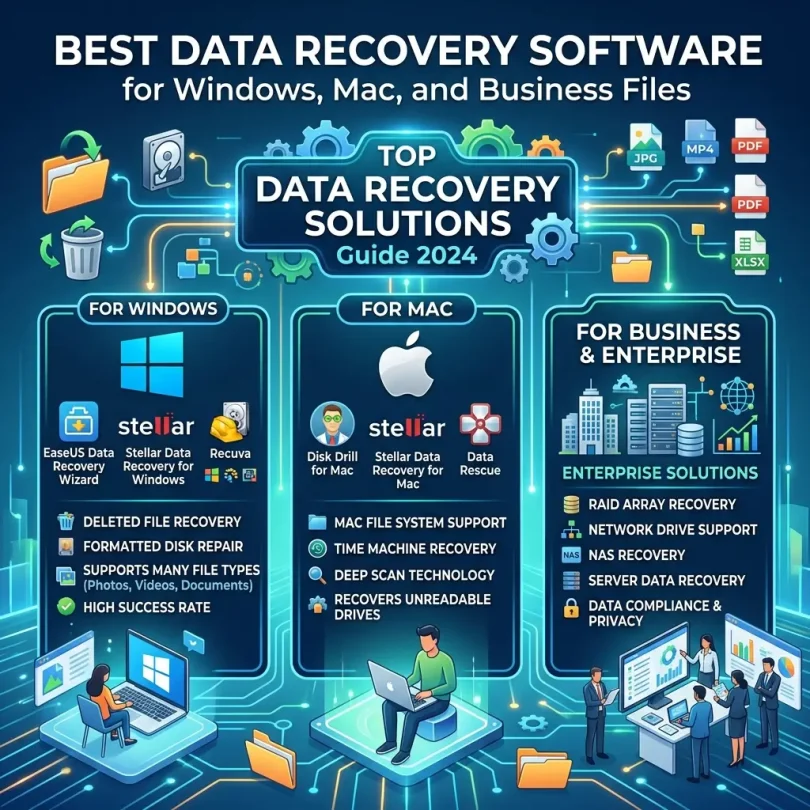
The best data recovery software depends on your device and recovery situation. EaseUS Data Recovery Wizard is a popular user-friendly option for Windows and Mac users. Disk Drill is strong for Mac users, creative files, external drives, and easy recovery workflows. Stellar Data Recovery is useful for Windows, Mac, photos, videos, and business file recovery. R-Studio is better for advanced users, technicians, RAID recovery, and complex file systems. Ontrack EasyRecovery is a professional-grade option with business and enterprise recovery use cases. Wondershare Recoverit is easy to use and supports many file types. Recuva is a simple free-style option for basic Windows recovery. TestDisk and PhotoRec are powerful free tools for technical users.
For most small business users, the safest starting point is a user-friendly tool that can scan first, preview files, and recover data to a different drive. Never recover files back to the same drive you are scanning.
Best Data Recovery Software for Windows, Mac and Business Files: Comparison Table
| Software | Best For | Main Strength | Good Fit For |
|---|---|---|---|
| EaseUS Data Recovery Wizard | Beginner-friendly recovery | Easy interface, deleted file recovery, formatted drive recovery | Small businesses and everyday users |
| Disk Drill | Mac and creative file recovery | Modern interface, deep scans, recovery tools, broad file support | Mac users, photographers, designers and business users |
| Stellar Data Recovery | Windows, Mac and media recovery | Document, photo, video and business file recovery | Professionals and small offices |
| R-Studio | Advanced technical recovery | RAID, network recovery, complex file systems, technician features | IT teams, technicians and advanced users |
| Ontrack EasyRecovery | Professional and business recovery | Enterprise-grade recovery options, RAID and business use cases | Businesses needing stronger recovery features |
| Wondershare Recoverit | Simple guided recovery | Easy scans, broad device and file support | Users who want a simple recovery workflow |
| Recuva | Basic Windows recovery | Lightweight deleted file recovery | Windows users with simple recovery needs |
| MiniTool Power Data Recovery | Windows file recovery | Partition and deleted file recovery | Windows users and small offices |
| DMDE | Low-cost advanced recovery | Disk editor, partition recovery, technical features | Advanced users comfortable with complex tools |
| TestDisk and PhotoRec | Free technical recovery | Partition repair and file carving | Technical users and budget recovery cases |
How Data Recovery Software Works
When a file is deleted, the operating system often does not immediately erase all file data from the storage device. In many cases, it marks the space as available for new data. Until that space is overwritten, recovery software may be able to find and restore the file.
Data recovery software scans the drive for file records, file signatures, lost partitions, damaged directories, and recoverable data fragments. Some tools run quick scans to find recently deleted files. Others run deep scans to search the raw storage area for known file patterns.
Recovery success depends heavily on time and usage. The more you use the drive after data loss, the more likely new data will overwrite the lost files. This is why you should stop using the affected drive immediately.
Important Safety Rules Before Using Data Recovery Software
1. Stop Using the Affected Drive
If you lost files from a hard drive, USB, SD card, or external drive, stop writing new data to it. Do not install recovery software on the same drive. Do not save new files there. Do not download anything to it.
2. Do Not Recover Files to the Same Drive
Always recover files to a different drive. Recovering files to the same drive can overwrite other lost files and reduce recovery success.
3. Avoid Repeated Scans on Failing Drives
If a drive is making clicking noises, disconnecting, overheating, or not recognized properly, avoid repeated software scans. The drive may have physical damage. A professional lab may be safer.
4. Create a Disk Image When Possible
Advanced users should create a sector-by-sector disk image and recover from the image instead of the original drive. This reduces stress on the failing device.
5. Do Not Format the Drive Again
If Windows or macOS asks you to format the drive, do not format it if you need the data. Formatting can make recovery harder.
6. Check Backups First
Before scanning, check Recycle Bin, Trash, File History, Time Machine, OneDrive, Google Drive, Dropbox, iCloud, Windows Backup, external backups, cloud backup services, and email attachments.
Best Data Recovery Software: Detailed Reviews
1. EaseUS Data Recovery Wizard
Best for: Beginner-friendly Windows and Mac recovery
EaseUS Data Recovery Wizard is one of the most recognized data recovery tools for Windows and Mac. It is designed for everyday users who need to recover deleted files, formatted drives, lost partitions, external drive data, USB files, SD card files, photos, videos, office documents, and business records.
Its main strength is ease of use. The interface guides users through selecting a drive, scanning, previewing files, and recovering them to a safe location. This makes it suitable for small businesses that do not have an IT department.
EaseUS is often recommended for simple to moderate recovery cases, especially when files were recently deleted or a drive was accidentally formatted. It may not be the best tool for complex RAID recovery or severely damaged drives, but it works well for many common business file recovery situations.
Key Features
- Deleted file recovery
- Formatted drive recovery
- Partition recovery
- External hard drive recovery
- USB and SD card recovery
- Photo, video, document and email recovery
- File preview before recovery
- Windows and Mac support
Pros
- Beginner-friendly interface
- Good for small business users
- Supports many file types
- Can preview recoverable files
- Useful for common recovery problems
Cons
- Paid plan may be needed for serious recovery
- Not ideal for physically damaged drives
- Advanced users may prefer R-Studio or DMDE
- Recovery results depend on overwrite status
Best Use Case
Choose EaseUS Data Recovery Wizard if you want an easy recovery tool for deleted files, formatted drives, USB drives, SD cards, documents, photos, and business files on Windows or Mac.
2. Disk Drill
Best for: Mac recovery, creative files and user-friendly deep scans
Disk Drill is a popular data recovery tool for macOS and Windows. It is known for a modern interface, broad file support, deep scan options, recovery previews, and extra disk tools. It is especially popular among Mac users, photographers, content creators, designers, and users recovering files from external drives, memory cards, cameras, and USB devices.
Disk Drill can recover many types of deleted files, including documents, photos, videos, audio files, archives, and business files. It also includes features such as byte-to-byte backup, S.M.A.R.T. monitoring, and recovery chance indicators depending on platform and version.
Recent reviews continue to highlight Disk Drill as a capable and user-friendly recovery tool for macOS and Windows, with broad file-system and file-signature support.
Key Features
- Deleted file recovery
- Deep scan recovery
- External drive, USB and SD card recovery
- Mac and Windows support
- File preview tools
- Byte-to-byte backup features
- Disk health monitoring tools
- Support for many file signatures
Pros
- Excellent user interface
- Strong fit for Mac users
- Good for photos, videos and creative files
- Useful extra disk tools
- Works with many storage devices
Cons
- Can be more expensive than basic tools
- Some scans may take time
- Not a replacement for professional recovery labs
- Advanced RAID cases may need another tool
Best Use Case
Choose Disk Drill if you use Mac or Windows and want an easy, modern data recovery tool for deleted files, external drives, SD cards, media files and business documents.
3. Stellar Data Recovery
Best for: Windows, Mac, photos, videos and business document recovery
Stellar Data Recovery is a well-known recovery tool for Windows and Mac. It can help recover documents, emails, photos, videos, audio files, folders, partitions, and external drive data. It is often used by professionals, small offices, photographers, and business users who need a guided recovery experience.
Stellar offers different editions depending on recovery needs. Some versions focus on standard file recovery, while higher plans may include photo/video repair, RAID recovery, or technician-level features. Businesses should compare editions carefully before purchasing.
Key Features
- Deleted file recovery
- Formatted drive recovery
- Partition recovery
- Photo and video recovery
- Email file recovery depending on version
- Windows and Mac support
- File preview
- Advanced editions for stronger recovery needs
Pros
- Good for business documents and media files
- Supports Windows and Mac
- Guided recovery workflow
- Different plans for different needs
- Recognized recovery software brand
Cons
- Plan selection can be confusing
- Advanced repair or RAID features may cost more
- Scans can take time on large drives
- Not ideal for physically damaged devices
Best Use Case
Choose Stellar Data Recovery if your business needs a well-known recovery tool for Windows, Mac, documents, photos, videos, external drives, and formatted partitions.
4. R-Studio
Best for: Advanced users, IT teams and complex recovery cases
R-Studio is a professional-grade data recovery tool used by technicians, IT teams, advanced users, and recovery specialists. It supports Windows, macOS and Linux, and can recover data from local disks, removable drives, corrupted disks, unbootable disks, and network-connected systems according to its official product information.
R-Studio is more technical than beginner-friendly tools. It offers advanced file system support, RAID reconstruction, disk imaging, network recovery, hex editor features, and detailed scan controls. This makes it powerful, but also less suitable for users who want a simple three-click recovery process.
For businesses with IT staff, R-Studio can be a serious tool for complex recovery situations. For non-technical users, it may feel overwhelming.
Key Features
- Advanced disk recovery
- Windows, Mac and Linux support
- RAID recovery tools
- Network recovery options
- Disk imaging
- Lost partition recovery
- Advanced file system support
- Hex editor and technician features
Pros
- Very powerful recovery features
- Good for IT professionals
- Supports complex file systems
- Can handle advanced recovery workflows
- Useful for RAID and network recovery cases
Cons
- Not beginner-friendly
- Requires technical understanding
- Interface may feel complex
- Wrong actions can create risk for inexperienced users
Best Use Case
Choose R-Studio if you are an advanced user, IT technician, or business with complex recovery needs such as RAID, corrupted partitions, network recovery, or multiple file systems.
5. Ontrack EasyRecovery
Best for: Professional business recovery and enterprise use cases
Ontrack EasyRecovery is a professional data recovery software option connected with a long-standing recovery services brand. It is used for personal, business and enterprise recovery cases, depending on edition. It can support Windows and Mac recovery, lost files, formatted drives, damaged volumes, RAID recovery in higher editions, and file repair features depending on plan.
Recent independent reviews describe Ontrack EasyRecovery as professional-grade and suitable for both individual users and larger organizations, with higher-tier versions supporting features such as drive cloning, disk image creation and RAID recovery.
Key Features
- Deleted file recovery
- Formatted drive recovery
- Deep scan recovery
- Drive cloning depending on version
- Disk image creation depending on version
- RAID recovery in advanced editions
- Photo and video repair options depending on plan
- Windows and Mac support
Pros
- Professional recovery brand
- Business and enterprise use cases
- Advanced editions for complex recovery
- Useful for RAID and serious recovery needs
- Good balance of power and usability
Cons
- Free recovery limits may be restrictive
- Advanced features cost more
- Scanning can be slow on large drives
- May be more than basic users need
Best Use Case
Choose Ontrack EasyRecovery if your business wants a professional recovery tool with stronger options for serious file recovery, RAID recovery, disk imaging and business data loss cases.
6. Wondershare Recoverit
Best for: Simple guided recovery for many file types
Wondershare Recoverit is a user-friendly recovery tool for Windows and Mac. It is designed to help users recover deleted files, formatted drive data, photos, videos, documents, external drives, USB drives, SD cards, and other common storage devices.
Recoverit is a good fit for users who want a guided interface rather than technical recovery controls. It may be useful for small businesses, freelancers, content creators, and everyday users who need to recover files without learning advanced disk structures.
Key Features
- Deleted file recovery
- Formatted drive recovery
- Photo and video recovery
- External drive recovery
- USB and SD card recovery
- File preview
- Windows and Mac support
- Video repair features depending on plan
Pros
- Easy to use
- Supports many file types
- Good for media recovery
- Works on Windows and Mac
- Useful for non-technical users
Cons
- Paid plan may be required for full recovery
- Not as technical as R-Studio or DMDE
- Advanced recovery cases may need stronger tools
- Recovery success is not guaranteed
Best Use Case
Choose Wondershare Recoverit if you want an easy recovery tool for deleted files, formatted drives, photos, videos, documents, USBs and SD cards.
7. Recuva
Best for: Basic Windows deleted file recovery
Recuva is a lightweight Windows data recovery tool that can help recover deleted files from hard drives, USB drives, memory cards, and other supported storage devices. It is best for simple recovery situations where files were recently deleted and the drive is still healthy.
Recuva is not as advanced as professional recovery tools, but it can be a useful first option for basic Windows users who need a simple recovery tool.
Key Features
- Deleted file recovery
- Windows support
- USB and memory card recovery
- Quick scan and deep scan options
- File preview where available
- Lightweight installation
Pros
- Simple and lightweight
- Good for basic Windows recovery
- Useful for recently deleted files
- Easy for beginners
- Can be enough for simple cases
Cons
- Windows only
- Not ideal for complex recovery
- Less powerful than advanced tools
- May not recover heavily corrupted data
Best Use Case
Choose Recuva if you need a simple Windows recovery tool for recently deleted files and basic recovery situations.
8. MiniTool Power Data Recovery
Best for: Windows file and partition recovery
MiniTool Power Data Recovery is a Windows-focused recovery tool that can help recover deleted files, lost partitions, formatted drive data, USB files, SD card files, and business documents. It is often used by Windows users who want a guided recovery process with partition scanning features.
For small businesses that mainly use Windows PCs, MiniTool can be a practical option for common recovery situations. As with other tools, physically damaged drives should be handled by professionals.
Key Features
- Windows data recovery
- Deleted file recovery
- Lost partition recovery
- Formatted drive recovery
- USB and SD card recovery
- File preview
- Business document recovery
Pros
- Good for Windows users
- Supports partition recovery
- Beginner-friendly workflow
- Useful for small offices
- Can recover many common file types
Cons
- Mostly Windows-focused
- Advanced features depend on paid plans
- Not ideal for severe physical damage
- Mac users need other options
Best Use Case
Choose MiniTool Power Data Recovery if your small business uses Windows and needs a practical tool for deleted files, formatted drives, and lost partitions.
9. DMDE
Best for: Advanced low-cost recovery and partition work
DMDE is a powerful data recovery and disk editing tool for advanced users. It can help with deleted file recovery, lost partitions, damaged file systems, and low-level disk analysis. It is often appreciated by technical users because it provides strong features at a lower cost than some commercial tools.
However, DMDE is not as beginner-friendly as EaseUS, Disk Drill, or Recoverit. It requires more technical understanding. For inexperienced users, the interface may feel complex.
Key Features
- Advanced data recovery
- Partition recovery
- Disk editor features
- File system analysis
- Lost directory recovery
- Support for multiple operating systems depending on version
- Low-cost licensing compared with many tools
Pros
- Powerful technical recovery features
- Good value for advanced users
- Useful for partition problems
- Can handle complex disk analysis
- Lightweight compared with some tools
Cons
- Not beginner-friendly
- Requires technical knowledge
- Wrong actions may create risk
- Interface is less polished than mainstream tools
Best Use Case
Choose DMDE if you are comfortable with advanced recovery tools and need low-cost partition recovery, disk analysis, or technical file recovery.
10. TestDisk and PhotoRec
Best for: Free technical recovery and file carving
TestDisk and PhotoRec are free open-source recovery tools used by technical users. TestDisk is mainly known for partition recovery and repairing certain boot or partition table problems. PhotoRec focuses on recovering files by scanning for file signatures, often called file carving.
These tools can be powerful, but they are not beginner-friendly. They may use command-line interfaces and require careful handling. They are useful when budget is limited and the user has technical confidence.
Key Features
- Free open-source recovery tools
- Partition recovery with TestDisk
- File carving with PhotoRec
- Support for many file types
- Cross-platform support
- Useful for technical recovery cases
Pros
- Free to use
- Powerful for technical users
- Good for partition and raw file recovery
- Works across multiple platforms
- Useful when commercial tools are not available
Cons
- Not easy for beginners
- Interface can be intimidating
- Recovered files may lose original names and folders
- Requires careful usage
Best Use Case
Choose TestDisk and PhotoRec if you are technical, need a free recovery tool, and are comfortable working with command-line style recovery workflows.
Best Data Recovery Software by Use Case
Best for Windows Users
EaseUS Data Recovery Wizard, Stellar Data Recovery, Recuva, MiniTool Power Data Recovery, R-Studio, DMDE, and Wondershare Recoverit are all worth comparing for Windows recovery.
Best for Mac Users
Disk Drill, EaseUS Data Recovery Wizard for Mac, Stellar Data Recovery for Mac, R-Studio for Mac, and Wondershare Recoverit are strong options for macOS recovery.
Best for Business Documents
EaseUS, Stellar, Disk Drill, R-Studio, Ontrack EasyRecovery, and MiniTool can help recover office documents, PDFs, spreadsheets, presentations, invoices, contracts, and business files.
Best for Photos and Videos
Disk Drill, Stellar, Wondershare Recoverit, EaseUS, and PhotoRec are often used for photo and video recovery from memory cards, cameras, external drives, and USB devices.
Best for External Hard Drives
EaseUS, Disk Drill, Stellar, R-Studio, Ontrack EasyRecovery, and MiniTool are practical options for external hard drive recovery if the drive is not physically damaged.
Best for RAID Recovery
R-Studio and Ontrack EasyRecovery are stronger choices for RAID recovery. Businesses with critical RAID data should consider professional help before attempting recovery.
Best Free Data Recovery Options
Recuva, TestDisk, PhotoRec, and limited free versions of commercial recovery tools can help in basic cases. Free tools may be enough for simple deleted file recovery, but serious business recovery may require paid software or professional services.
When Software Recovery Is Not Enough
Data recovery software is useful for logical data loss. Logical data loss means the drive is physically working, but files are deleted, formatted, hidden, corrupted, or inaccessible due to software-level problems.
Software may not be safe when the drive has physical damage. Warning signs include clicking noises, grinding sounds, burning smell, repeated disconnection, extremely slow access, overheating, no detection in BIOS or Disk Utility, or visible damage.
In these cases, stop using the drive. Every additional attempt can make recovery harder. A professional recovery lab may use cleanroom tools, donor parts, imaging equipment, and specialist methods.
Data Recovery Software Pricing: What to Know
Data recovery software pricing varies by platform, license type, recovery limit, business features, RAID support, technician license, and repair tools. Some tools allow free scanning and preview but require payment to recover files. Others allow limited free recovery. Professional and technician editions cost more because they include advanced features.
Common Pricing Factors
- Windows or Mac license
- Monthly, yearly or lifetime license
- Amount of data recovered
- Number of devices
- Business or technician license
- RAID recovery support
- Video or photo repair features
- Bootable recovery media
- Customer support level
- Commercial use rights
Before buying, scan the drive and preview files where possible. This helps confirm whether the software can actually find the files you need.
Data Recovery Checklist for Small Businesses
- Stop using the affected device immediately
- Check Recycle Bin or Trash first
- Check cloud backups and local backups
- Do not install recovery software on the affected drive
- Do not save recovered files to the affected drive
- Use a different drive for recovered files
- Create a disk image if the drive may be unstable
- Preview files before paying where possible
- Use professional recovery for physically damaged drives
- After recovery, set up automatic cloud backup
How to Prevent Future Business Data Loss
Data recovery software is helpful after a problem, but prevention is better. Every business should build a simple data protection system.
1. Use Cloud Backup
Back up business files automatically to a secure cloud backup service. Do not rely only on manual copying.
2. Follow the 3-2-1 Backup Rule
Keep three copies of important data, on two different storage types, with one copy offsite or in the cloud.
3. Use Version History
Version history helps recover older versions of files after accidental edits, corruption, or ransomware encryption.
4. Protect Against Ransomware
Use endpoint protection, email security, multi-factor authentication, software updates, and secure backups.
5. Train Employees
Teach employees not to delete shared folders carelessly, format drives without checking, open suspicious attachments, or store important files only on local desktops.
6. Test Backups
A backup is only useful if it can be restored. Test recovery regularly.
Final Recommendation
The best data recovery software for Windows, Mac and business files depends on your situation. EaseUS Data Recovery Wizard is a strong beginner-friendly option for everyday recovery. Disk Drill is excellent for Mac users, creative files, external drives, and a modern recovery experience. Stellar Data Recovery is useful for business documents, photos, videos and professional users. R-Studio is best for advanced users, IT teams and complex recovery cases. Ontrack EasyRecovery is a strong professional-grade option for business and enterprise recovery needs. Wondershare Recoverit is good for simple guided recovery. Recuva is useful for basic Windows deleted file recovery. DMDE, TestDisk and PhotoRec are powerful options for technical users.
For business-critical data, do not experiment too much. Stop using the device, avoid writing new data, scan safely, recover files to another drive, and contact a professional recovery service if the drive shows signs of physical failure.
Data recovery software can save important files, but it should not be your main data protection plan. The best long-term solution is automatic cloud backup, secure local backup, version history, endpoint protection, employee training, and regular recovery testing.
FAQs About Data Recovery Software
What is the best data recovery software for Windows?
EaseUS Data Recovery Wizard, Stellar Data Recovery, Disk Drill, Recuva, MiniTool Power Data Recovery, R-Studio and DMDE are popular Windows recovery options. The best tool depends on whether you need simple deleted file recovery or advanced technical recovery.
What is the best data recovery software for Mac?
Disk Drill, EaseUS Data Recovery Wizard for Mac, Stellar Data Recovery for Mac, R-Studio for Mac and Wondershare Recoverit are strong options for Mac recovery.
Can data recovery software recover permanently deleted files?
Sometimes. If the file data has not been overwritten, recovery software may recover it. If the data has been overwritten or permanently cleared by SSD TRIM, recovery may not be possible.
Can data recovery software recover files from a formatted drive?
Yes, in many cases. If the drive was quick-formatted and new data has not overwritten the old files, recovery software may find recoverable files or partitions.
Is free data recovery software enough?
Free tools can help with simple recovery cases. For larger recovery jobs, business files, formatted drives, RAID systems, or advanced scanning, paid software or professional recovery may be needed.
Can data recovery software fix a physically damaged hard drive?
No. Software cannot repair physical damage. If a drive clicks, grinds, overheats, disconnects repeatedly, or is not detected, stop using it and contact a professional recovery lab.
Should I install recovery software on the same drive?
No. Installing software on the affected drive can overwrite deleted files. Install the recovery tool on a different drive or computer.
Where should I save recovered files?
Always save recovered files to a different drive. Saving them to the same drive can overwrite other lost data.
Can data recovery software recover SSD files?
Sometimes, but SSD recovery can be harder because TRIM may permanently clear deleted data. If the data is important, stop using the SSD immediately and seek professional advice.
How can businesses avoid future data loss?
Businesses should use automatic cloud backup, local backup, version history, endpoint protection, employee training, secure access controls, and regular backup restore testing.