
Passwords are still one of the biggest security weak points for families, remote teams and businesses. People reuse the same password across multiple accounts, save login details in browsers, share credentials through chat messages, write passwords in notebooks, use weak passwords for important tools, and forget to remove access when someone leaves a team.
A password manager solves this problem by storing passwords, passkeys, secure notes, payment details, Wi-Fi passwords, software licenses, recovery codes and shared credentials inside an encrypted vault. Instead of remembering dozens of passwords, users only need to remember one strong master password. The password manager can generate unique passwords, autofill logins, warn about weak or reused passwords, support two-factor authentication, and make secure sharing easier.
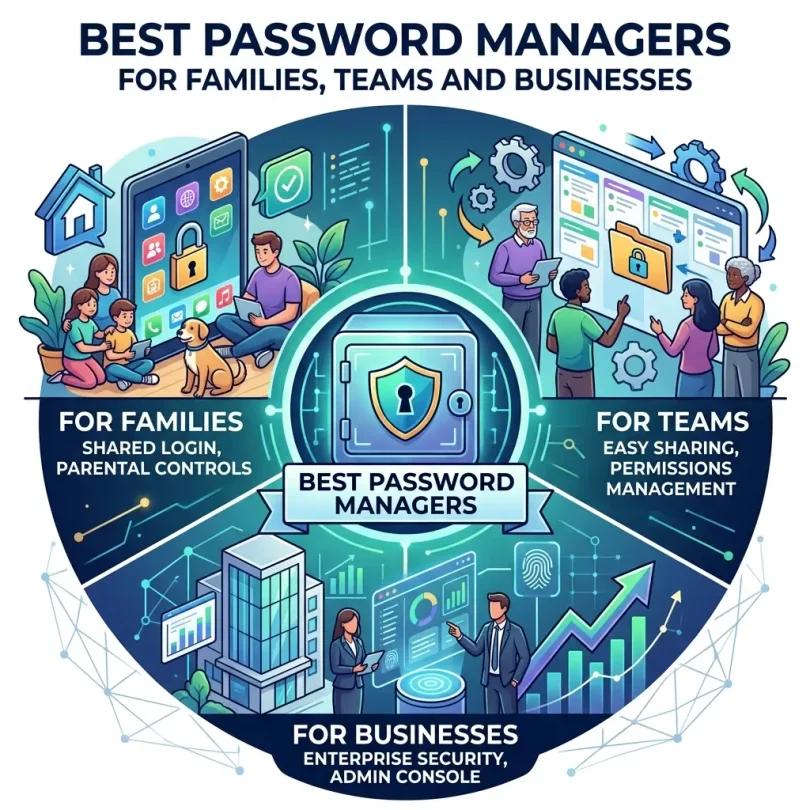
For families, a password manager helps share streaming accounts, school portals, utility bills, banking access notes, insurance accounts, travel logins and emergency information safely. For teams, it helps employees access company tools without exposing passwords in spreadsheets or chat apps. For businesses, it supports admin controls, user roles, audit logs, single sign-on, policy enforcement, secure onboarding and offboarding.
This guide compares the best password managers for families, teams and businesses, explains the most important features, and helps you choose the right password vault for your needs.
Important note: This article is for general cybersecurity and software guidance. Password manager pricing, plan limits, family seats, business features, passkey support, SSO options, admin controls and security policies can change. Always review the latest vendor documentation, pricing and terms before choosing a password manager.
Quick Answer: What Is the Best Password Manager?
The best password manager depends on your use case. 1Password is one of the strongest all-around choices for families, teams and businesses because it offers polished apps, secure sharing, family recovery options, business controls and advanced enterprise features. Bitwarden is excellent for users who want open-source transparency, strong free options and affordable business plans. Keeper is strong for business teams that need secure sharing, role-based access and enterprise controls. NordPass is a user-friendly option with strong personal, family and business plans. Dashlane is useful for users who want password management plus extra security features. Proton Pass is attractive for privacy-focused users, especially those already using Proton services. RoboForm is a good value option for autofill-heavy users. KeePass is powerful for technical users who want local control.
For most families, choose a password manager with easy sharing, emergency access, simple apps, strong autofill and family member recovery. For most businesses, choose a password manager with admin controls, secure shared vaults, MFA, SSO, audit logs, user provisioning and clear offboarding.
Best Password Managers for Families, Teams and Businesses: Comparison Table
| Password Manager | Best For | Main Strength | Good Fit For |
|---|---|---|---|
| 1Password | Best all-around password manager | Polished apps, secure sharing, family and business controls | Families, remote teams, growing businesses |
| Bitwarden | Open-source and affordable security | Free plan, open-source transparency, business options | Individuals, families, startups and technical teams |
| Keeper | Business password security | Secure sharing, role-based controls, enterprise features | Teams and businesses needing strong admin controls |
| NordPass | User-friendly password management | Modern interface, password health, data breach scanning | Families, small teams and non-technical users |
| Dashlane | Password manager with extra security tools | Password health, dark web monitoring, VPN options depending on plan | Users wanting broader personal security features |
| Proton Pass | Privacy-focused users | Proton ecosystem, aliases, privacy-first positioning | Privacy-conscious families and users |
| RoboForm | Autofill and budget value | Strong form filling, affordable plans, simple use | Families and users filling many online forms |
| LastPass | Existing LastPass users and legacy teams | Familiar interface, sharing, business features | Users already inside LastPass ecosystem |
| KeePass | Local control and technical users | Free open-source local password database | Advanced users who want self-managed storage |
| Enpass | Offline-first password storage | Local vault with optional cloud sync | Users who want more control over sync location |
| Zoho Vault | Business password management | Team sharing, admin controls, Zoho ecosystem | Small businesses using Zoho tools |
| Passbolt | Open-source team password management | Team collaboration, self-hosting options, business sharing | Technical teams and organizations wanting open-source business vaults |
Why Families and Businesses Need Password Managers
Many people still manage passwords in unsafe ways. Some reuse the same password for email, social media, banking, hosting, ecommerce, school accounts and work tools. Some store passwords in browser notes, phone contacts, screenshots, WhatsApp chats or spreadsheets. These habits are risky because one leaked password can give attackers access to multiple accounts.
A password manager helps create unique, random and strong passwords for every account. This means if one website is breached, the stolen password should not unlock your email, bank account, business dashboard or cloud storage.
For businesses, password managers are even more important. Employees often need access to shared tools such as hosting accounts, domain registrars, social media pages, ad accounts, CRMs, analytics dashboards, support software, payment processors, design tools and SaaS subscriptions. Sharing passwords through chat or spreadsheets creates serious risk.
Common Problems Password Managers Solve
- Weak passwords
- Password reuse
- Forgotten logins
- Unsafe password sharing
- Former employees keeping access
- No visibility into shared credentials
- Family members locked out of important accounts
- Credentials saved in browsers without control
- No password health monitoring
- No secure storage for recovery codes
- Difficulty managing passkeys and 2FA codes
Password Manager vs Browser Password Saving
Browsers such as Chrome, Edge, Safari and Firefox can save passwords. This is convenient, but a dedicated password manager usually offers stronger features for families and businesses.
A dedicated password manager can provide secure sharing, family vaults, business admin controls, user roles, audit logs, password health reports, cross-platform apps, emergency access, encrypted notes, passkey support and better team management. Browser password saving may be enough for basic personal use, but it is usually not ideal for businesses that need policy control and secure sharing.
What to Look for in a Password Manager
1. Zero-Knowledge Encryption
A good password manager should be designed so the provider cannot read your vault contents. This is commonly called zero-knowledge architecture. Your vault should be encrypted before it leaves your device, and only you should hold the master password or decryption key.
2. Strong Password Generator
The password manager should generate long, random and unique passwords. This helps prevent password reuse and makes brute-force guessing much harder.
3. Secure Sharing
Families and businesses need safe ways to share logins. A good password manager should let you share credentials without sending passwords through email, chat or spreadsheets.
4. Family Vaults and Shared Collections
Family plans should allow shared vaults for household accounts and private vaults for each person. Parents may need to share school accounts, utilities, subscriptions, insurance portals and emergency notes while keeping personal accounts private.
5. Business Admin Controls
Business plans should include an admin dashboard, user groups, role-based access, vault permissions, activity logs, onboarding, offboarding and security policy enforcement.
6. Multi-Factor Authentication
Your password manager should support MFA for vault access. Options may include authenticator apps, security keys, biometric unlock, email verification, or device approval depending on provider.
7. Passkey Support
Passkeys are becoming more common as a safer alternative to traditional passwords. A modern password manager should help create, store, sync and use passkeys across devices where supported.
8. Password Health Reports
Password health tools identify weak, reused, old or breached passwords. This helps families and businesses improve security over time.
9. Emergency Access or Recovery
Families may need emergency access if someone becomes unavailable or passes away. Businesses need recovery options if an employee forgets access or leaves. Recovery should be secure, not a backdoor that weakens protection.
10. Cross-Platform Apps
A good password manager should work across Windows, macOS, Linux, iOS, Android and major browsers. Families and teams often use mixed devices.
Best Password Managers: Detailed Reviews
1. 1Password
Best for: Families, remote teams and growing businesses
1Password is one of the most polished and widely respected password managers. It offers personal, family, team, business and enterprise plans with secure vaults, password sharing, password health tools, passkey support, device apps, browser extensions and advanced business features.
For families, 1Password is strong because it makes sharing simple without exposing every private password. Family members can have private vaults plus shared vaults for household logins. Family organizers can help recover accounts if someone forgets their master password.
For businesses, 1Password offers shared vaults, admin controls, user groups, reporting, provisioning, single sign-on options and advanced access-management features. In 2026, 1Password has also expanded its enterprise access-management positioning; TechRadar reported that 1Password launched Unified Access as part of its Extended Access Management suite to help companies manage credential and SaaS access sprawl.
Key Features
- Personal, family, team and business vaults
- Secure password sharing
- Passkey support
- Password health alerts
- Travel Mode
- Watchtower security alerts
- Admin controls for businesses
- SSO and provisioning options depending on plan
- Apps for major platforms
Pros
- Excellent user experience
- Strong family and business plans
- Secure sharing is easy
- Good enterprise features
- Works well across devices
Cons
- No traditional free plan for long-term full use
- Can cost more than budget alternatives
- Advanced business features may require higher plans
- Users must still protect their master password carefully
Best Use Case
Choose 1Password if you want a premium password manager that works well for families, remote teams and businesses with strong sharing and admin controls.
2. Bitwarden
Best for: Open-source transparency and affordable password management
Bitwarden is a popular password manager known for open-source software, strong free options, affordable paid plans and business features. It is often recommended for users who want security, transparency and value.
For individuals and families, Bitwarden offers a cost-effective way to store passwords, notes, payment cards and identities. For teams and businesses, it provides shared collections, user management, policies, reporting and enterprise options depending on plan.
TechRadar’s comparison of Bitwarden and 1Password notes that both are effective password managers, with Bitwarden positioned as the more affordable option and 1Password as more business/enterprise oriented.
Key Features
- Open-source password manager
- Free and paid plans
- Password generator
- Secure notes and vault items
- Passkey support
- Two-factor authentication options
- Family and business sharing
- Self-hosting option for advanced users
- Browser extensions and mobile apps
Pros
- Excellent value
- Open-source transparency
- Strong free plan
- Affordable family and business options
- Good for technical users and startups
Cons
- Interface may feel less polished than 1Password for some users
- Advanced setup can require technical understanding
- Family sharing may feel less beginner-friendly than premium competitors
- Business rollout still needs proper policy setup
Best Use Case
Choose Bitwarden if you want a secure, affordable and open-source password manager for personal, family or business use.
3. Keeper
Best for: Business password security and secure sharing
Keeper is a strong password manager for individuals, families, teams and businesses. It is especially attractive for business use because it offers secure vaults, role-based access, admin controls, reporting, secrets management options, secure file storage add-ons and enterprise security features.
For families, Keeper offers shared vault features and strong cross-device support. For businesses, it helps reduce credential risk by giving administrators control over who can access which passwords.
TechRadar’s 2026 password-manager coverage describes Keeper as one of the top-rated password managers, with family plans covering up to five secure vaults and Business Starter features such as centralized management, secure sharing and role-based access.
Key Features
- Encrypted password vault
- Secure sharing
- Role-based access controls
- Business admin console
- Password health reporting
- Dark web monitoring options
- Secure file storage options
- Enterprise features depending on plan
- Cross-platform apps
Pros
- Strong for businesses
- Good secure sharing controls
- Role-based access is useful for teams
- Family and personal plans available
- Solid security-focused feature set
Cons
- Some security add-ons may cost extra
- No broad free tier like Bitwarden
- Business features may be more than simple users need
- Plan comparison should be reviewed carefully
Best Use Case
Choose Keeper if your business needs secure password sharing, role-based access, admin controls and strong team password management.
4. NordPass
Best for: Easy password management for families and small teams
NordPass is a modern password manager from the Nord Security ecosystem. It is designed to be simple, clean and easy for non-technical users. It supports password storage, secure sharing, password health, data breach scanning, passkeys and business plans.
NordPass can be a good option for families and small teams that want a friendly interface and strong security features without a complex setup. It is also attractive for users already familiar with NordVPN or NordLayer.
TechRadar’s 2026 password-manager guide ranks NordPass highly for most users, citing its modern interface, encryption approach and affordability.
Key Features
- Password vault
- Password generator
- Secure sharing
- Password health reports
- Data breach scanner
- Passkey support
- Family and business plans
- Cross-platform apps
Pros
- Modern and simple interface
- Good for non-technical users
- Strong fit for families and small teams
- Useful password health tools
- Part of a broader security ecosystem
Cons
- Some advanced features require paid plans
- Business controls may not be as deep as enterprise-first tools
- Free plan limitations should be checked
- Less customizable than some open-source options
Best Use Case
Choose NordPass if you want a clean, user-friendly password manager for family members, small teams or everyday business use.
5. Dashlane
Best for: Password management with extra personal security features
Dashlane is a well-known password manager that offers password storage, autofill, password health, dark web monitoring, secure sharing and extra security features depending on plan. Some Dashlane plans have historically included VPN-style features, making it appealing to users who want more than basic password storage.
Dashlane can be a good fit for individuals and families who want an easy interface and security alerts. Businesses may also consider Dashlane for team password management, though they should compare business controls against tools like 1Password, Keeper and Bitwarden.
Security.org’s 2026 password-manager roundup recommends Dashlane among major password managers and notes it as a family-friendly option in its testing summary.
Key Features
- Password vault
- Autofill
- Password generator
- Secure sharing
- Password health monitoring
- Dark web monitoring
- VPN options depending on plan
- Personal and business plans
Pros
- Easy to use
- Good password health tools
- Useful dark web monitoring
- Strong personal security features
- Good for families wanting extra alerts
Cons
- Can cost more than budget options
- Some features depend on plan
- Business users should compare admin features carefully
- Not open-source like Bitwarden
Best Use Case
Choose Dashlane if you want a polished password manager with password health, dark web alerts and extra security tools for personal or family use.
6. Proton Pass
Best for: Privacy-focused users and Proton ecosystem fans
Proton Pass is a password manager from Proton, the company known for privacy-focused tools such as Proton Mail and Proton VPN. It is attractive for users who care about privacy, encrypted services and email aliasing.
Proton Pass can store passwords, create aliases, support passkeys and integrate with the broader Proton ecosystem. It is a good option for privacy-conscious families, individuals and small teams who already use Proton services.
TechRadar’s 2026 guide positions Proton Pass as especially appealing for privacy-conscious users, highlighting Swiss jurisdiction and advanced protection options such as Proton Sentinel.
Key Features
- Password vault
- Email aliases
- Passkey support
- Secure notes
- Cross-platform apps
- Proton ecosystem integration
- Free and paid options
- Privacy-focused design
Pros
- Strong privacy positioning
- Good for Proton users
- Email aliases are useful for privacy
- Simple interface
- Growing feature set
Cons
- Business features may not be as mature as some competitors
- Best value is stronger inside Proton ecosystem
- Advanced team controls should be reviewed
- Some users may prefer more established business password managers
Best Use Case
Choose Proton Pass if privacy, email aliases and Proton ecosystem integration are important to you.
7. RoboForm
Best for: Autofill, form filling and budget-friendly password management
RoboForm is one of the older password managers and is especially known for strong autofill and form-filling features. It can store passwords, identities, payment details, secure notes and shared logins.
RoboForm can be useful for families and individuals who fill many online forms, shopping details, registration pages and repeated login forms. It also offers business plans for team password management.
Security.org’s 2026 guide names RoboForm as a highly affordable option in its testing summary, highlighting value and convenience.
Key Features
- Password vault
- Strong form filling
- Password generator
- Secure sharing
- Emergency access options
- Family and business plans
- Cross-platform support
- Browser extensions
Pros
- Excellent autofill features
- Good value pricing
- Useful for families and individuals
- Long-standing product history
- Business plans available
Cons
- Interface may feel less modern than newer tools
- Advanced enterprise features may be less attractive than Keeper or 1Password
- Some users may prefer open-source options
- Plan features should be checked carefully
Best Use Case
Choose RoboForm if you want affordable password management with strong autofill and form-filling features.
8. LastPass
Best for: Users already inside the LastPass ecosystem
LastPass is one of the most well-known password managers and has been widely used by individuals, families and businesses. It offers password storage, autofill, secure sharing, family plans and business features.
However, many users now compare LastPass more carefully because of its past security incidents and market concerns. Existing users may still find it familiar and feature-rich, but new users should compare it against 1Password, Bitwarden, Keeper, NordPass, Dashlane and Proton Pass before deciding.
Key Features
- Password vault
- Autofill
- Password sharing
- Family plans
- Business admin controls
- MFA options
- Security dashboard
- Cross-platform apps
Pros
- Familiar interface for many users
- Family and business plans available
- Broad platform support
- Useful sharing features
- Easy migration for existing users may not be necessary
Cons
- Past security incidents affect user trust
- New users may prefer alternatives
- Free plan restrictions may be limiting
- Businesses should review security documentation carefully
Best Use Case
Choose LastPass mainly if you already use it and are comfortable with its current security posture, features and business controls. New users should compare alternatives carefully.
9. KeePass
Best for: Technical users who want local password control
KeePass is a free, open-source password manager that stores passwords in an encrypted local database. It is powerful and highly customizable, but it is not as beginner-friendly as cloud-based password managers.
KeePass is best for advanced users who want full control over where the password database is stored and how it is synced. Users can keep the vault offline or sync it manually through a trusted method. However, families and businesses may find it harder to manage because sharing, recovery and cross-device sync require extra setup.
TechRadar’s recent password-generator coverage also highlights KeePass as a free, open-source option with customizable password creation rules, though it can be more complex to set up.
Key Features
- Free open-source password database
- Local encrypted vault
- Password generator
- Plugin ecosystem
- Customizable security settings
- Manual sync options
- Portable database use
Pros
- Free and open-source
- Local control over vault storage
- Highly customizable
- Good for advanced users
- No required cloud account
Cons
- Not beginner-friendly
- Sharing is harder than cloud tools
- Sync and backup are user responsibility
- Not ideal for most families or non-technical teams
Best Use Case
Choose KeePass if you are technical and want a free local password manager with full control over storage and sync.
10. Enpass
Best for: Offline-first password storage with optional cloud sync
Enpass is a password manager that stores vault data locally and allows users to sync through services such as iCloud, Google Drive, Dropbox, OneDrive or other supported storage options. This gives users more control over where their encrypted vault is stored.
Enpass can be useful for users who do not want a traditional cloud-hosted password manager but still want cross-device syncing. It supports passwords, secure notes, identities, payment information and autofill.
Key Features
- Local password vault
- Optional cloud sync through third-party storage
- Password generator
- Autofill
- Secure notes
- Cross-platform apps
- Family and business options depending on plan
Pros
- More control over vault storage
- Good for offline-first users
- Works across major platforms
- Useful for personal and family use
- No need to store vault directly with password-manager provider
Cons
- Sync setup may be confusing for beginners
- Business controls may not match enterprise leaders
- Users must manage cloud storage security
- Sharing may be less seamless than 1Password or Keeper
Best Use Case
Choose Enpass if you want offline-first password management with optional syncing through a cloud storage provider you control.
11. Zoho Vault
Best for: Small businesses already using Zoho tools
Zoho Vault is a business-focused password manager from Zoho. It provides password storage, team sharing, user management, access controls, admin features and integration with the broader Zoho ecosystem.
It can be a practical option for small businesses already using Zoho CRM, Zoho Mail, Zoho Projects, Zoho Books or other Zoho apps. Zoho Vault helps teams store and share business credentials without relying on spreadsheets or chat messages.
Key Features
- Business password vault
- Team password sharing
- User groups and roles
- Admin dashboard
- Audit trails
- Access control policies
- Zoho ecosystem integration
- Browser extensions
Pros
- Good for small businesses
- Useful Zoho ecosystem integration
- Team sharing and admin controls
- Affordable compared with some enterprise tools
- Business-focused features
Cons
- Less attractive if you do not use Zoho apps
- Interface may not feel as polished as 1Password
- Family use is not the main focus
- Advanced enterprise needs may require careful review
Best Use Case
Choose Zoho Vault if your small business already uses Zoho products and wants business password sharing with admin controls.
12. Passbolt
Best for: Open-source team password management
Passbolt is an open-source password manager built for teams and organizations. It is designed for secure collaboration and sharing, with self-hosted and cloud options depending on preference.
Passbolt can be useful for development teams, IT teams, agencies and organizations that want open-source business password management with more control over deployment. It may require more technical skill than consumer password managers, especially for self-hosting.
Key Features
- Open-source team password manager
- Secure team sharing
- Self-hosted and cloud options
- User and group management
- Business access controls
- Browser extension support
- Audit and collaboration features depending on plan
Pros
- Open-source business focus
- Good for technical teams
- Self-hosting option
- Designed for team sharing
- Useful for IT and development environments
Cons
- Not ideal for non-technical families
- Setup can be more complex
- Interface may be less mainstream than consumer tools
- Best for teams, not casual personal users
Best Use Case
Choose Passbolt if your technical team wants an open-source password manager with strong sharing and deployment control.
Best Password Manager by Use Case
Best Password Manager for Families
1Password, NordPass, Keeper, Dashlane, Bitwarden and RoboForm are strong family options. Families should look for shared vaults, private vaults, emergency access, easy mobile apps, secure sharing and simple recovery options.
Best Password Manager for Small Teams
1Password, Bitwarden, Keeper, NordPass, Zoho Vault and Passbolt are good choices for small teams. Teams should prioritize admin controls, user groups, secure sharing, MFA and offboarding.
Best Password Manager for Businesses
1Password, Keeper, Bitwarden, Dashlane Business, Zoho Vault and Passbolt are worth comparing for businesses. Business features matter more than personal features, especially audit logs, SSO, provisioning and role-based access.
Best Free Password Manager
Bitwarden is one of the strongest free password manager choices because of its open-source model and generous free functionality. Proton Pass and KeePass are also strong free or low-cost options depending on user preference.
Best Open-Source Password Manager
Bitwarden is best for most users who want open-source password management with cloud convenience. KeePass is best for local-only advanced users. Passbolt is best for open-source team password sharing.
Best Password Manager for Privacy
Proton Pass is a strong privacy-focused choice, especially for users already using Proton Mail or Proton VPN. Bitwarden and KeePass are also attractive for privacy-conscious users who value transparency and control.
Best Password Manager for Business Sharing
Keeper, 1Password, Bitwarden, Zoho Vault and Passbolt are strong options for business password sharing. Look for group permissions, shared vaults, audit logs and access revocation.
Password Manager Pricing: What to Know
Password manager pricing usually depends on plan type, number of users, family seats, shared vaults, business controls, SSO, admin features, storage, dark web monitoring, passkey features and support level.
Common Pricing Factors
- Individual vs family plan
- Number of family members
- Number of business users
- Shared vault limits
- Admin dashboard features
- SSO integration
- User provisioning
- Audit logs
- Dark web monitoring
- Secure file storage
- Emergency access
- Priority support
- Monthly vs annual billing
For families, the best value is usually a family plan instead of separate individual plans. For businesses, the cheapest plan may not be enough if you need SSO, advanced reporting, provisioning or role-based controls.
Password Manager Security Checklist
Before choosing a password manager, review this checklist:
- Does it use zero-knowledge encryption?
- Does it support MFA?
- Can it generate strong passwords?
- Does it support secure sharing?
- Does it support passkeys?
- Can it identify weak or reused passwords?
- Does it warn about breached passwords?
- Are apps available for all your devices?
- Can family members recover accounts safely?
- Can businesses remove users immediately?
- Are admin logs available?
- Does it support SSO or identity integrations?
- Is pricing clear?
- Has the provider published security documentation?
- Can you export your vault if you switch later?
Common Password Manager Mistakes to Avoid
Mistake 1: Using a Weak Master Password
Your master password protects the whole vault. It should be long, unique and memorable. Avoid using names, birthdays, phone numbers or reused passwords.
Mistake 2: Not Enabling MFA
Always enable multi-factor authentication for your password manager account. A strong master password is important, but MFA adds another layer of protection.
Mistake 3: Sharing Passwords Outside the Vault
If you still send passwords through WhatsApp, email, Slack or spreadsheets, you are missing one of the main benefits of a password manager. Use secure sharing instead.
Mistake 4: Not Removing Former Employees
When someone leaves a company, remove their access immediately. Review shared vaults and rotate sensitive passwords if needed.
Mistake 5: Ignoring Password Health Reports
Password health reports are only useful if you act on them. Replace weak, reused and breached passwords gradually.
Mistake 6: Saving Recovery Codes Unsafely
Recovery codes for email, banking, hosting and business tools should be stored securely. Do not leave them in plain text notes or screenshots.
Mistake 7: No Emergency Plan
Families should plan emergency access for important accounts. Businesses should define who owns admin vaults and what happens if an admin is unavailable.
How to Set Up a Password Manager for a Family
Step 1: Choose a Family Plan
Pick a password manager that supports shared and private vaults. 1Password, Keeper, NordPass, Dashlane, Bitwarden and RoboForm are all worth comparing.
Step 2: Create Private Vaults
Each family member should have a private vault for personal accounts.
Step 3: Create Shared Vaults
Create shared vaults for utilities, streaming services, insurance, school accounts, travel accounts, home Wi-Fi, emergency documents and household subscriptions.
Step 4: Enable MFA
Enable MFA for each family member where possible.
Step 5: Replace Reused Passwords
Start with the most important accounts: email, banking, cloud storage, mobile accounts, social media and government portals.
Step 6: Add Emergency Access
Set up recovery or emergency access so important accounts are not lost if someone forgets a password or becomes unavailable.
How to Set Up a Password Manager for a Business
Step 1: Choose a Business Plan
Do not use individual personal accounts for company password sharing. Choose a business plan with admin controls.
Step 2: Create User Groups
Organize users by department such as admin, marketing, sales, support, finance, developers and contractors.
Step 3: Create Shared Vaults
Create vaults for tools such as hosting, domains, CRM, analytics, ads, social media, customer support, accounting, cloud storage and internal systems.
Step 4: Apply Least Privilege
Give employees access only to the passwords they need. Not everyone needs access to domain registrar, payment accounts or server credentials.
Step 5: Enable MFA and Policies
Require MFA, strong master passwords and device security where possible.
Step 6: Import and Clean Existing Passwords
Move passwords out of spreadsheets, browsers and chat apps. Remove duplicates and update weak passwords.
Step 7: Create an Offboarding Process
When an employee leaves, remove their vault access immediately and rotate critical shared credentials if necessary.
Final Recommendation
The best password manager for families, teams and businesses depends on your needs. 1Password is one of the best all-around choices for families and growing businesses because it combines usability, secure sharing and strong admin controls. Bitwarden is excellent for users who want open-source transparency and affordable plans. Keeper is strong for businesses that need role-based access and secure sharing. NordPass is a simple and modern choice for families and small teams. Dashlane is good for users who want password management plus extra security features. Proton Pass is attractive for privacy-focused users. RoboForm is useful for autofill and budget value. KeePass is best for technical users who want local control. Zoho Vault and Passbolt are practical for business and technical team use cases.
For families, focus on easy sharing, private vaults, emergency access and simple apps. For businesses, focus on admin controls, MFA, secure sharing, audit logs, user groups, SSO, provisioning and offboarding. A password manager is not just a convenience tool. It is one of the easiest security upgrades a household or business can make.
FAQs About Password Managers
What is the best password manager for families?
1Password, Keeper, NordPass, Dashlane, Bitwarden and RoboForm are strong family password managers. The best choice depends on ease of use, family sharing, emergency access, pricing and device support.
What is the best password manager for businesses?
1Password, Keeper, Bitwarden, Dashlane Business, Zoho Vault and Passbolt are strong options for businesses. Look for admin controls, secure sharing, role-based access, audit logs, MFA and SSO support.
Is Bitwarden better than 1Password?
Bitwarden is usually better for users who want open-source transparency and lower pricing. 1Password is often better for users who want a more polished experience, strong family sharing and advanced business features.
Are password managers safe?
Password managers can be safe when they use strong encryption, zero-knowledge architecture and MFA. Users must also choose a strong master password and keep devices secure.
Can a password manager be hacked?
Any online service can be targeted, but a well-designed password manager stores vault data encrypted. The biggest risks are weak master passwords, phishing, malware on devices and poor security habits.
Should families use a password manager?
Yes. Families can use password managers to share household accounts safely, store emergency information, protect school and utility accounts, and avoid password reuse.
Should businesses use a password manager?
Yes. Businesses should use password managers to manage shared credentials securely, remove access when employees leave, enforce MFA and reduce the risk of password reuse.
What is a passkey?
A passkey is a newer login method designed to reduce reliance on traditional passwords. Many modern password managers can store or sync passkeys across devices.
Is browser password saving enough?
Browser password saving may be convenient for basic personal use, but dedicated password managers usually offer better sharing, family plans, business controls, audit logs and cross-platform management.
What is the most important password manager feature?
The most important features are strong encryption, unique password generation, secure sharing, MFA support, password health alerts and reliable cross-device access.